
Free AI Tools That Can Save You Hours Every Week
Free AI tools really can trim the time spent drafting, support research, clean up notes and take care of basic design jobs, as long as you choose the right tool for the task. The best free tiers earn their keep by removing friction, not by replacing skilled work. For readers in South Africa, the real benefit is simple: doing more without paying upfront or fighting a complicated setup.
Key takeaways
- Free AI tools are most effective for repeatable jobs such as drafting, summaries and cleaning up notes.
- The best free choices reduce hassle instead of standing in for sound judgement or real expertise.
- Selecting tools around your workflow is better than chasing the brand with the most buzz.
- Most free tiers have restrictions, so look at credits, exports and account rules from the start.
- A straightforward set of tools can save more time than testing every new app that appears.
What Free AI Tools can realistically do for you
Free AI tools tend to shine with repeatable work: creating first drafts, summarising long pages, turning messy notes into something readable, generating ideas and translating short pieces of text. DataCamp’s guide to free AI tools points to Claude’s free tier as one example, with access to Claude Sonnet 4.6 and monthly AI credits for creative tools DataCamp.
There are limits, though. Free access usually comes with trade-offs: fewer messages, slower responses, smaller context windows, limited exports or a cut-down feature set. Some tools also make you sign in before you can test them. In practice, ‘free’ often means credits rather than open-ended use, plus a privacy policy worth reading before you paste in anything sensitive.
The most useful way to treat free AI is as a time-saver, not an expert. It can move you from a blank page to a rough draft, from scattered notes to a usable outline, or from a long article to a short summary. Don’t treat it as the final word on facts, figures, money, work or legal decisions.
The best Free AI Tools worth trying first
| Tool | Best suited to | Key strength | Main free-plan restriction |
|---|---|---|---|
| Claude free tier | Writing, rewriting, planning | Natural-feeling drafting and useful monthly AI credits | Usage is limited, so frequent users may hit the cap quickly |
| Perplexity | Brief research overviews and answers guided by sources | Rapid search-like research with short, clear explanations | Free access is more restricted than paid research features |
| Notion AI | Tidying notes and keeping work organised | Changes rough notes into more useful content within your workspace | The strongest features may sit behind paid workspace limits |
| Google Stitch | Basic UI and design prototyping | Handy for quick interface concepts and early mock-ups | Free use suits prototyping better than production work |
| Google Cloud free AI options | Language translation plus prototyping | Wide range of free AI-related options for builders and testers | May seem technical if you just need a simple writing tool |
| AIxploria | Discovering more free AI sites | Large directory of tools covering many categories | Quality is inconsistent, as this is a directory rather than a single tool |
| AITopTools | Assessing AI tools | Extensive library with reviews to support a shortlist of options | You will still have to try the tools for yourself |
If you want writing help that still sounds human, Claude is a sensible starting point. Its free tier is notable mainly because it includes access to Claude Sonnet 4.6, and the monthly AI credits give you room to test creative work before paying anything DataCamp.
Perplexity earns its place because it feels more like a research assistant than a basic chat tool. You can look up a topic, get a concise summary and then move the useful points into your own notes, which is close to how many people already work when they’re trying to research faster. Google Cloud’s free AI tools page also shows how translation and prototyping fit neatly into the free-tool category, especially when you need quick help with multilingual tasks Google Cloud.
Notion AI is strongest when the mess is already sitting in your notes, rather than when you’re starting from a blank page. It can clean up meeting fragments, turn loose thoughts into headings and cut the time spent reorganising information. Google Stitch, which Aurelius Tjin featured in a YouTube round-up of free tools, is more specialised: it turns ideas into early interface concepts, so it suits people sketching product screens more than those writing reports YouTube.
Directories such as AIxploria and AITopTools are worth saving if you like comparing options before you commit. They aren’t the tools doing the actual work, but they can lead you to lesser-known products and help you separate serious free options from throwaway ones AIxploria AITopTools.
How to choose the right tool for your workflow
- Begin with the job you need done, rather than the brand name. For drafting, choose a writing assistant; for evidence or fast summaries, go with a research-focused tool; for untidy notes, use a cleaner such as Notion AI; for interface sketches, turn to Google Stitch.
- Inspect the free tier carefully. Check message caps, credits, browser access, export choices and whether an account is required before you can test it properly.
- Do not run two or three tools to handle one task unless every tool solves a separate blockage. A single capable tool you understand properly is normally quicker than several apps doing much the same thing.
- Follow a straightforward rule: start with the tool that cuts the most time from your weakest stage. When sorting notes is the problem, deal with that before looking for a more advanced writing model.
A simple weekly workflow that saves time
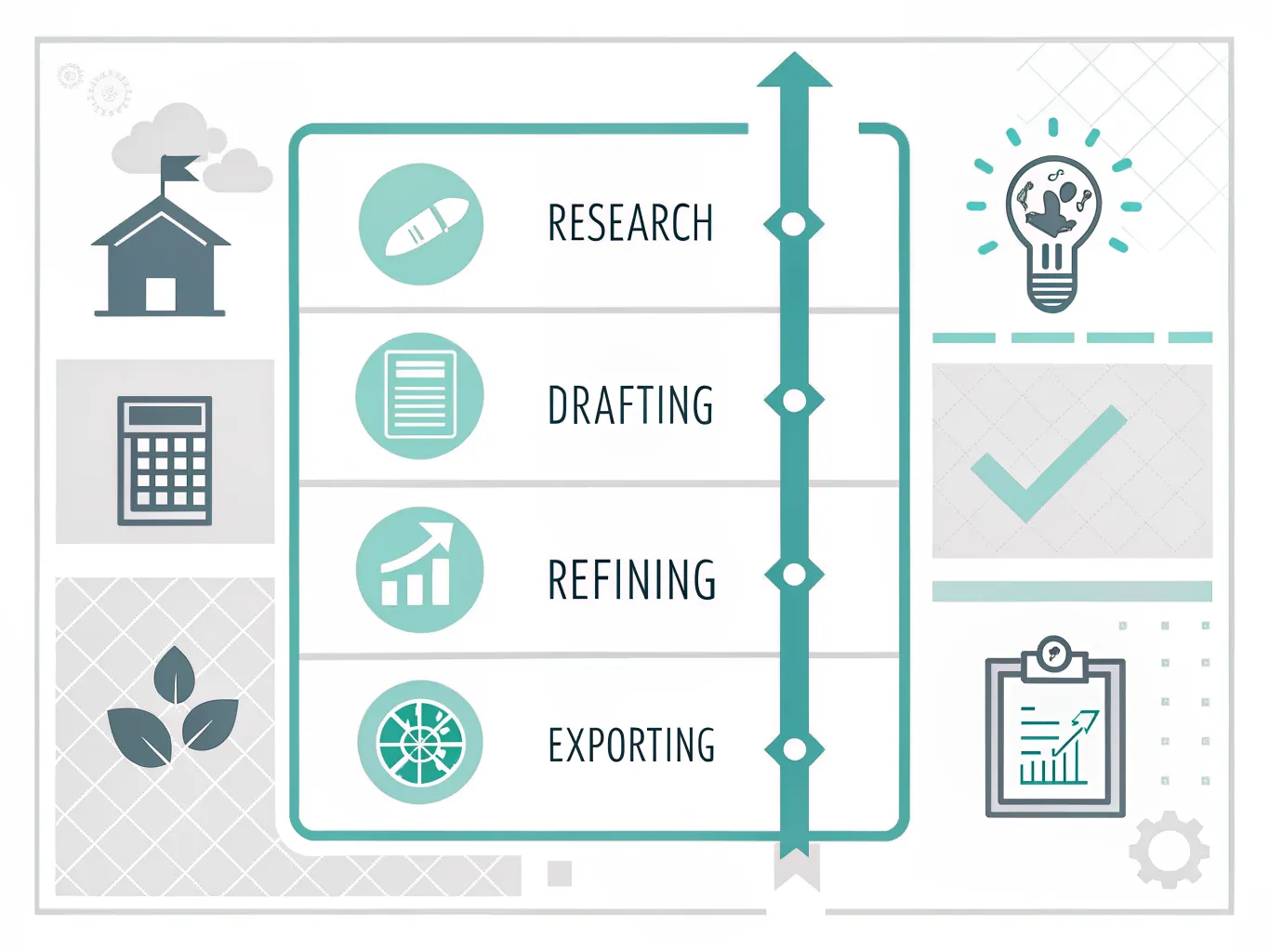
- Choose one tool for research. Perplexity is useful for fast topic checks, finding sources and creating early summaries before you go into your own documents.
- Choose one tool for drafting. Claude is a good option if you need a more polished first version of an email, article outline or brief.
- Choose one tool for cleanup. Notion AI is useful for reshaping rough meeting notes into headings, action points and a clearer structure.
- Stick to a set routine from notes to draft. Collect ideas in one place across the week, then shape them into a cleaner draft in a single session rather than repeating the same thinking daily.
- Save design and visuals for the times they are genuinely needed. Google Stitch can support a fast mock-up, but it should not turn into a distraction from everyday admin.
- Check the workflow at the week’s end and cut any stage that fails to save time. A basic routine is better than switching between tools simply because they cost nothing.
What to watch out for before you rely on a free plan
The main risk with free AI tools isn’t that they’re unusable. It’s that they’re so easy to use you can end up pasting in material without stopping to ask where it goes next. Check whether the tool stores prompts, whether your content may be used to improve models, and whether uploaded files can be deleted. Privacy policies are hardly the fun part of setting up an account, but they matter a lot if you handle client work or anything confidential.
Accuracy is another place where free tools can let you down. A tool might produce a polished paragraph and still get the facts wrong, especially with recent news or technical subjects. Use it to move faster, then check the details yourself before you publish, send or file anything that matters.
Only move to a paid plan when the free version starts getting in the way of real work. If you hit credit limits every week, need better context handling or want stronger collaboration features, paying can make sense. But if AI is only something you use now and then for admin, notes or light creative work, a free tier is usually enough and keeps your costs at £0.
The best way to use free AI is to treat it as a practical assistant with firm limits. Choose one tool for research, one for drafting and one for cleaning things up, then stick with that unless a specific job clearly needs something else. That keeps the workflow simple, the cost at nil and the time savings easy to see.
Frequently asked questions
Are Free AI Tools actually good enough for daily work?
Yes, free AI tools can save real time on drafting, summarising, brainstorming and light research. They work best on repeatable jobs, such as turning messy notes into a usable outline or cutting a long article down into a short summary. Just remember the limits: usage caps, weaker features and the odd inaccurate answer, so use them as a shortcut rather than the final word.
Which free AI tool is best for writing?
Claude’s free tier is one of the stronger options for writing because it can produce drafts that sound natural, and the article mentions access to Claude Sonnet 4.6 plus monthly AI credits. Notion AI is a better fit for sorting notes and reshaping rough material. The better choice depends on what you need most: writing support or organisation.
Can I use Free AI Tools without paying later?
Often, yes. Many free plans still come with caps, credits or restricted features, though, so the free version may only stretch to light use. Some tools also make you sign in before you can test them properly. If you keep hitting those limits, the tool stops being useful for regular work.
Are Free AI Tools safe for confidential information?
Not always. The article says you should read the privacy policy carefully before adding anything sensitive, because many free tools rely on credits and may handle data differently from paid services. Don’t enter sensitive business, personal or client information unless you’re clear on how it is stored and used.
What is the easiest way to save time with free AI?
Pick one tool for research, one for drafting and one for cleanup, then use the same workflow each week. A simple setup might be Perplexity for quick topic checks, Claude for first drafts and Notion AI for tidying notes. Sticking with a routine saves more time than trying every new tool that appears.