
Why Two-Factor Authentication Is Essential
Two Factor Authentication adds a second check when you sign in, so a stolen password alone won’t get someone into an account. It’s a simple, practical way to reduce the risk of account takeovers on banking, email and social media accounts.
Key takeaways
- For important accounts, relying on a password alone is no longer sufficient.
- For everyday use, authenticator apps are a stronger option than SMS.
- Security keys provide the strongest protection for high-risk sign-ins.
- Set up backup codes and recovery options before the moment you need them.
- 2FA is most useful when applied to email, banking and cloud accounts first.
What Two Factor Authentication is, and why it works
Two Factor Authentication means a sign-in needs two separate factors, usually something you know and something you have. That might be a password plus a code from an app or SMS, or a password used with a hardware security key; Twilio and Wikipedia describe it in much the same way Twilio Wikipedia.
The term sits within multi-factor authentication, or MFA. MFA covers any login process that asks for two or more separate proofs, while 2FA is the version that uses exactly two. In everyday account settings, though, the wording often gets blurred, so you may see it called “two-step verification” or a “security check” instead.
The security logic is simple. If a criminal gets your password through a data leak, a phishing page or a reused login, they still have another barrier to clear. Microsoft Security says 2FA strengthens sign-in security by asking for two distinct forms of identity verification Microsoft Security.
Why passwords alone are no longer enough
Password reuse is the big risk here. One email and password combination is often tried across several services, so a single exposed login can quickly put email, cloud storage, shopping or banking accounts in the firing line. That’s why security teams keep pushing unique passwords and a second factor on the accounts you’d least want to lose.
Phishing is one of the main routes criminals use to break into accounts, because it tricks people into typing credentials into a fake page or bogus sign-in flow. Cisco Duo specifically lists phishing, password hacks and stolen credentials as threats that 2FA can help block Cisco Duo.
That matters because a stolen password is rarely where an attack stops. If an attacker gets into email first, they can request password resets on other services, pick up verification messages and move towards financial or social accounts. Once the inbox is theirs, the rest of the account trail is much easier to follow.
2FA methods compared: authenticator apps, SMS codes and security keys
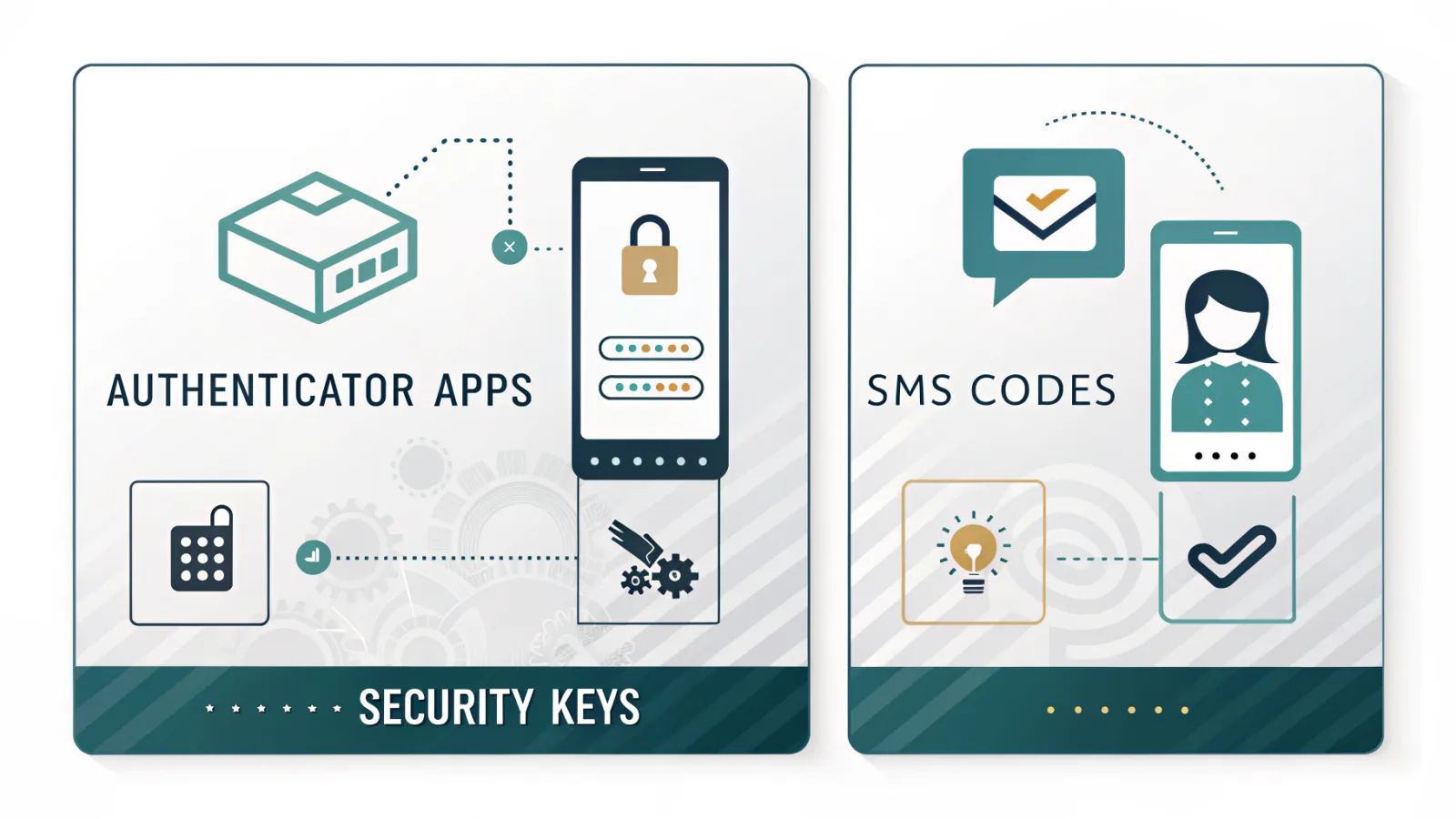
| Approach | Protection | Ease of use | Recovery guidance |
|---|---|---|---|
| Authenticator application | Strong; the code refreshes rapidly and is linked to the device | Fast after setup; works without mobile signal | Store backup codes and keep a recovery option available in case the phone is lost |
| SMS code | Stronger than no second factor, but less secure than app- or key-based methods | Familiar and simple to understand | SIM swap and message interception can introduce risk |
| Security key | Very strong, as it depends on a physical device | Fast for regular logins, but the key must be carried | Keep a spare key and refresh recovery details |
| Online or browser-based 2FA tools | Helpful for creating codes in certain workflows, though it should not be used as the sole approach | Useful on a device you trust | Handle them with care and do not rely on one browser session alone |
For most people, an authenticator app such as Google Authenticator or Microsoft Authenticator is usually the best balance, because the code is generated on the phone itself. It doesn’t depend on mobile signal in the same way as SMS. BrowserScan follows the same basic approach, using a 2FA code generator to create a short-lived sign-in code BrowserScan.
SMS verification is still better than having no second factor, and plenty of services offer it because it’s easy to roll out. It is weaker, though, where SIM-swap fraud or message interception is a realistic risk. A security key, by contrast, is a physical device you need with you at sign-in, which makes it harder to copy or pass around than a text message.
How to turn on Two Factor Authentication on the accounts that matter most
Start with the accounts that can unlock the rest of your online life: email, banking, cloud storage and social accounts such as X. X’s Help Centre describes two-factor authentication as an extra layer on top of your password X Help Centre.
- Go to the account’s security, sign-in or login settings.
- Find the option for two-factor authentication, two-step verification or sign-in verification.
- Select the method you prefer to use, ideally an authenticator app or security key.
- Verify the device or phone number if the service asks you to confirm it.
- Save backup codes immediately and keep them somewhere separate from the device you use to log in.
Order matters here. If you switch on 2FA before checking your recovery options, changing phones or replacing a device could leave you locked out. Set it up when you’ve got time to save backup codes and try signing in on a second device, not while you’re rushing through a password reset.
For work accounts, the same idea applies, but with extra care. Microsoft Security and Cisco Duo both describe 2FA as a way to protect apps, resources and data across users and systems Microsoft Security Cisco Duo. For personal accounts, the practical rule is simple: secure the inbox first, then move on to anything that can spend money or expose private information.
Common mistakes that weaken 2FA
- Using SMS alone even though a more secure method is offered, particularly on email or financial accounts.
- Changing phones, or losing access to the authenticator app, without first setting up recovery steps or saving backup codes.
- Being tricked by phishing sites or bogus approval requests that may still record sign-in attempts.
One common mistake is treating every second factor as equally secure. A text message, an app code and a security key all protect your account in different ways. The option you choose affects phishing resistance, recovery, and what happens if someone manages to move your number to a new SIM.
The device matters too, and people often miss that. If your phone is shared, infected, rooted or often left unlocked, your second factor may be weaker in daily use than it looks on paper. 2FA still helps, but it works best when your phone, recovery email and password manager are protected together.
What a sensible 2FA setup looks like
A sensible setup is to use an authenticator app or a security key whenever the service allows it. You get stronger sign-in protection than SMS, without making the process so awkward that you stop using it.
Keep recovery codes offline and separate from the device you use to sign in. A printed copy stored somewhere safe, or a secure note that doesn’t sync to your main phone, is safer than leaving everything in one inbox or cloud folder.
Review your recovery options whenever you change phones, replace a security key or update your password manager. Password managers are useful because they create unique passwords and reduce reuse, but they work best alongside 2FA, not in place of it.
If recovery for an account relies on your phone number, keep SIM-swap fraud in mind. In a SIM swap, a criminal persuades a mobile provider to move your number to a new SIM, which lets them receive SMS codes meant for you. That’s why app-based codes or a security key are usually safer for important accounts.
Frequently asked questions
Is Two Factor Authentication the same as MFA?
The right setup is the one you can actually keep using. If it’s strong, quick to access when you need it and backed by a recovery plan, you’re far less likely to lock yourself out or hand an attacker an easy way in.
Is SMS 2FA safe enough?
Not exactly. Two Factor Authentication is a type of multi-factor authentication that uses exactly two factors, while MFA is the broader term for any sign-in that asks for two or more proofs. Account settings don’t always use the terms consistently, so you may also see wording such as “two-step verification” or “security check”.
What if I lose my phone with my authenticator app on it?
Yes. SMS 2FA is still better than using only a password, so switch it on if that’s the only option available. Even so, authenticator apps are usually a better balance for most people, while security keys are stronger because sign-in depends on a physical device. SMS is weaker where SIM-swap fraud or message interception is a concern.
Which accounts should I protect first?
Use your backup codes or the account’s recovery process to get back in, then set up 2FA again on the replacement device. Save the backup codes as soon as you first enable 2FA. If you move to a new phone without them, you could lock yourself out. It’s also worth testing recovery while you still have access.
Does Two Factor Authentication stop phishing completely?
Start with email, banking, cloud storage and social accounts, because these can expose or unlock many other services. Secure your inbox first, as email access can be used to reset other passwords and receive verification messages. Then protect accounts that can spend money or hold private data.